sk; liquid; zenith
I try to keep a keen eye out for other developers’ takes on terminal utilities, and today we have three alternates for tools you likely use and 💙. Even if you don’t end up switching to any of them, knowing they’re out there mauy come in handy in a pinch.
TL;DR
(This is an LLM/GPT-generated summary of today’s Drop using Qwen/Qwen3-8B-MLX-8bit with /no_think via MLX, a custom prompt, and a Zed custom task.)
- Skim is a fast fuzzy finder in Rust for interactive terminal search and filtering, with features like live previews and shell integration (https://github.com/skim-rs/skim)
- Liquidprompt is a context-aware Bash/Zsh prompt showing relevant system and environment info with customizable themes and minimal clutter (https://liquidprompt.readthedocs.io/en/stable/)
- Zenith is a Rust-based terminal system monitor with zoomable charts, historical data tracking, and detailed metrics for CPU, memory, network, and more (https://github.com/bvaisvil/zenith)
sk
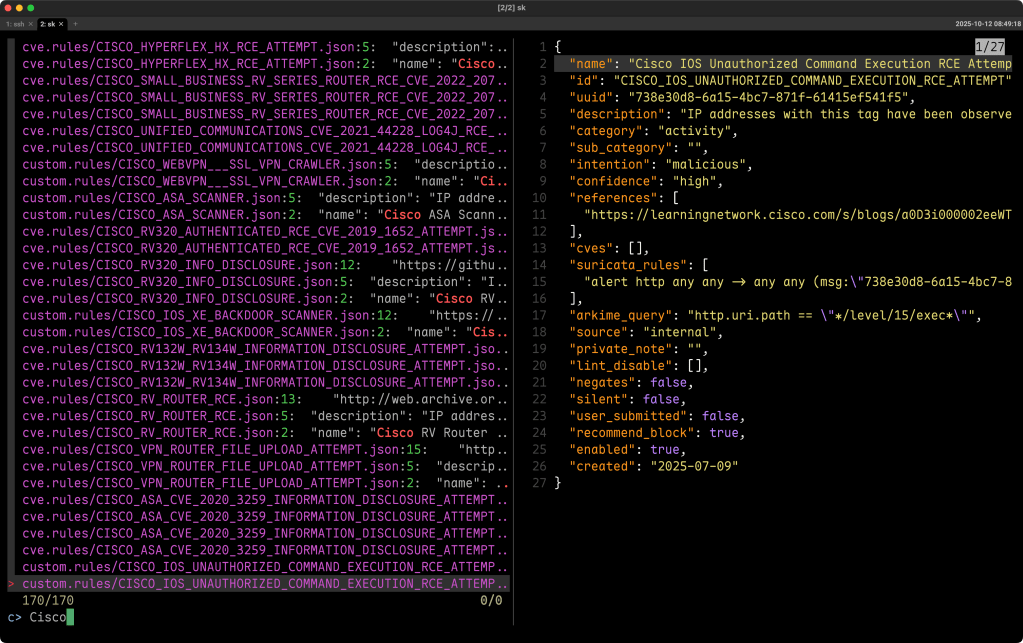
Skim is a bonkers fast fuzzy finder built in Rust that makes finding things in your terminal feel like second nature. If you’ve ever used fzf, this will feel familiar (but it will also likley feel just a little sharper and faster). The core concept is simple and similar to fzf: you feed it a list of “things” (files, lines, whatever), Skim lets you search and filter interactively, and then you act on what you pick.
The command is just sk, and you can run it anywhere, pipe stuff into it, and it’ll give you a spiffy, scrollable interface for fuzzy finding. Like fzf, it’s somewhat of a mix of grep, less, and a command palette, with impressively zero lag.
Installation’s super easy. On macOS, you can brew install sk. Linux folks can use their distro’s package manager (dnf install skim, pacman -S skim, etc.), and developers can just cargo install skim. Once you have it, sk becomes one of those utilities you end up wiring into everything.
You’ll use it in two main ways. First is filter mode, where you pipe data in. Something like:
vim $(find . -name "*.rs" | sk -m)
That’ll let you select multiple Rust files (with Tab) and open them in Vim. The second mode is interactive: Skim can run a command in real time as you type and update results dynamically. For example:
sk --ansi -i -c 'rg --color=always --line-number "{}"'
Here, {} is replaced with whatever you’ve typed so far, so you’re basically doing live ripgrep searches.
If you enable shell integration (by sourcing the skim keybindings), you unlock a handful of shortcuts that change how you work in the terminal: Ctrl-T to pick files, Ctrl-R to search your history, Alt-C to jump directories, and even fuzzy tab completion (**<Tab>). Once you’ve tried that, regular navigation feels like walking through a thick Maine marsh.
The search syntax is precisely what you’d expect—fuzzy by default, but with some precision if you need it. You can use things like ^music to match prefixes, .mp3$ for suffixes, 'wild for exact matches, and !fire to exclude stuff. Combine patterns with spaces (which ANDs) or | (whichORs), and you can even toggle regex mode mid-search with Ctrl-R.
One invaluable skim feature is “previews”. You can pipe in a command to show live context beside your search results:
sk --ansi -i -c 'ag --color "{}"' --preview "preview.sh {}"
You get a split view—search on one side, context on the other—and you can control layout with flags like --preview-window up:30%. It’s an instant feedback loop that makes searching logs, code, or structured output much less painful. The section header is me looking for Cisco tags in my $WORK repo via:
sk --ansi -i -c 'rg --color=always --line-number "{}"' \
   --preview 'bat --style=numbers --color=always --highlight-line {2} {1}' \
   --delimiter ':' --preview-window right,70%
Skim handles structured text gracefully too. If you’ve got colon-separated output like filename:line:column, you can search only certain parts with:
sk --delimiter ':' --nth 1
That’s great for working with compiler output or grep results.
Visually, skim’s pretty flexible. There are built-in themes like dark and molokai, and you can fine-tune colors with --color flags, even using RGB hex values. It respects NO_COLOR, so accessibility’s baked in.
Compared to fzf, skim has a few differences under the hood. It’s written in Rust instead of Go, has an interactive mode (-i), supports pre-selection, and uses a different fuzzy-matching algorithm. It’s not trying to be a perfect clone, but it does overlap with fzf in spirit.
You can even use skim as a Rust library, embedding it directly in your own apps.
use skim::prelude::*;

let options = SkimOptionsBuilder::default()
    .height(String::from("50%"))
    .multi(true)
    .build()
    .unwrap();
It’s great for building interactive tools that need fuzzy selection but don’t want to reinvent the wheel.
There are plenty of small tricks to make skim even better. You can define a default command with SKIM_DEFAULT_COMMAND (for example, fd or rg --files), hook it into grep or ag, or bind keys to custom actions, like this:
sk --bind 'f1:execute(less -f {}),ctrl-y:execute-silent(echo {} | pbcopy)+abort'
Exit codes are predictable, so you can script around them (0 = normal exit, 1 = no match, 130 = aborted). And since it works with fzf–lua for Neovim and nu_plugin_skim for Nushell, you can keep your setup cohesive across environments.
Skim feels like a quiet upgrade to your command-line muscle memory. It doesn’t scream for attention, but it does make everything faster, smoother, and more tactile. Once you’ve wired in Ctrl-T, Ctrl-R, and a good preview command, you’ll wonder how you ever lived without it.
Here’s one more Skim invocation that builds a TUI SSH connection tool from known hosts:
{ awk '/^Host /{for(i=2;i<=NF;i++) if ($i!="*") print $i}' ~/.ssh/config 2>/dev/null
  awk '{print $1}' ~/.ssh/known_hosts 2>/dev/null | sed 's/[ ,].*//' | sed 's/\[//;s/\]//' ; } \
| sort -u \
| sk --preview 'ssh -o BatchMode=yes -o ConnectTimeout=2 {} true && echo "reachable" || echo "unreachable"' \
     --bind 'enter:execute(ssh {})'
liquid

I’m pretty happy with Starship as a CLI prompt across all my systems, but I came across liquidprompt (GH), appreciate where its coming from, and figured it’d be worth a share (I will not be switching to it).
Like many of its counterparts, this tool is an adaptive, context-aware prompt for Bash and Zsh that provides just the right information at the right time. It shows what matters when it matters, reducing clutter and helping folks move faster at the command line. It’s built around a clean, “useful” experience. That means no unnecessary noise, no dependency headaches, and full configurability. Everything it shows is there because it’s relevant, not because it looks fancy.
It automatically displays system and shell info like your current path (with smart shortening and highlighting), low battery warnings, how long your last command took, and even the number of detached screen or tmux sessions. It also tracks your directory stack, shell nesting level, and wireless signal strength.
Version control integration is pretty ace, with detailed support for Git, Mercurial, SVN, Bazaar, and Fossil (we humans are so bad at naming things). You’ll see branch names, tags, commit stats, and repository states directly in your prompt.
Liquidprompt also understands development environments, meaning it’ll pick up on your active AWS profile, container, or (ugh) Kubernetes context and show indicators for Node.js, Ruby, Terraform, Python virtualenvs, Conda, and more.
Getting started is equally super simple as Skim. You can test it by running the script directly or make it permanent by sourcing it in your shell config file:
[[ $- = *i* ]] && source ~/liquidprompt/liquidprompt
NOTE: If you’re using
bash-preexec, make sure it’s sourced before Liquidprompt, even if its documentation says otherwise.
You can fine-tune nearly everything through config options. Settings can go in files like ~/.liquidpromptrc or ~/.config/liquidpromptrc, which take precedence over environment variables. You can control how paths are shortened—whether you want only the last directory, truncated characters, unique prefixes, or special highlighting for version control roots.
There are also a few built-in themes, like the default and a Powerline-style one, but you can easily roll your own.
Compared to prompts like Starship, Spaceship, Powerlevel10k, or Pure, Liquidprompt focuses less on flash and more on usability and performance.
If you want a smart, fast, and highly customizable prompt that enhances your workflow instead of distracting from it, Liquidprompt is a strong choice. It’s for people who live in their terminals and value clarity, context, and control over flash and fluff.
zenith
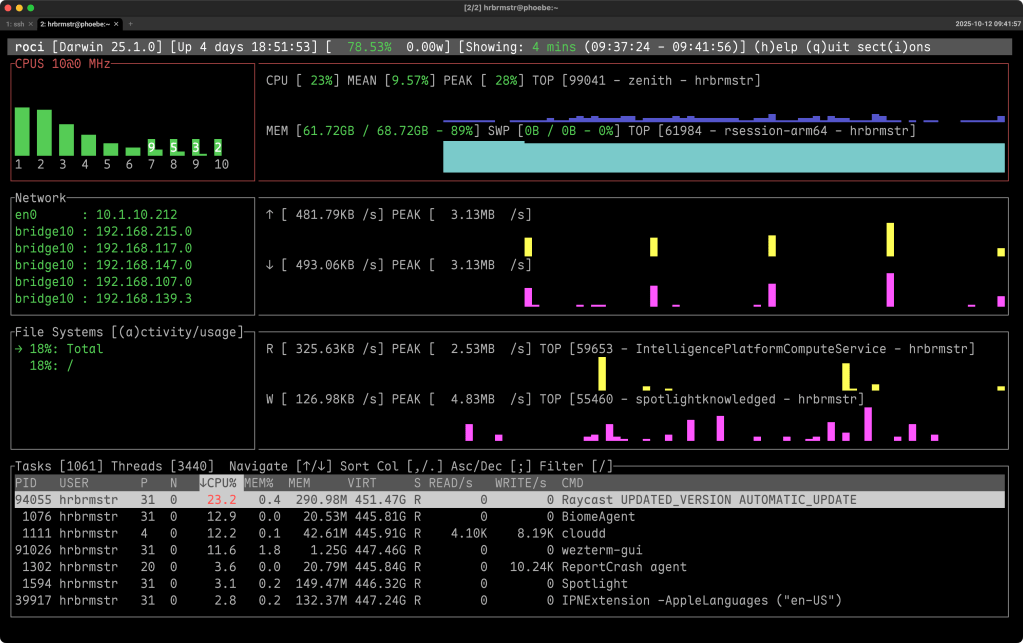
Zenith is yet-another terminal-based system monitor written in Rust. Think of it as top or htop but with style and depth. It has pretty spiffy zoomable charts, (you can focus into charts for CPU, memory, network, and disk usage), tracks historical data (letting you scroll back in time to inspect past performance — and even keep that data between runs!), and you can resize or hide sections to create your ideal view, making it as minimal or as detailed as you like. The tools truly conveys a sense that your system has finally gotten a decent and highly configurable TUI dashboard.
All the metrics go deep. CPU stats include frequency and virtualization awareness through steal percentage. Memory and disk charts visualize usage and pressure. Network monitoring shows per-process usage and active interfaces on Linux. GPU users will appreciate NVIDIA support (when built with --features nvidia), complete with per-process utilization. It even tracks battery life, power draw, and sensor temperatures.
The process management feels like a modern rethinking of top. You can filter, change process priorities, send signals, and — if you’re on Linux with root privs — dig into delay accounting. It’s all real-time and reactive. Beyond that, Zenith watches for kernel errors, Docker containers, ZFS pools, and virtualization environments.
It’s built to run anywhere that matters: full-featured on Linux and well-supported on macOS and BSD.
Installation is as easy as today’s other two utilities, so we’ll save some bytes and ACK that you’ll know what to do.
Some useful startup CLI-TUI customizations:
zenith -c 0       # hide CPU chart
zenith -r 1000    # 1-second refresh rate
zenith -p 50      # process table takes 50% height
Once inside, navigation feels intuitive. Use arrows to move through processes, Tab to switch sections, + and – to zoom, and h for help when you forget something. You can even scroll through time, exploring performance data like a detective piecing together a mystery.
The lookback (I saw one blogger call it “time-travel debugging for your machine”) and zoom support are truly pretty spiffy. It is as if the developer actually uses the tool!
It is 100% worth keeping in your al-terminal-tive toolkit.
FIN
Remember, you can follow and interact with the full text of The Daily Drop’s free posts on:
- 🐘 Mastodon via
@dailydrop.hrbrmstr.dev@dailydrop.hrbrmstr.dev - 🦋 Bluesky via
https://bsky.app/profile/dailydrop.hrbrmstr.dev.web.brid.gy
☮️
 hrbrmstr's Daily Drop
Leave a comment