Imaginary Text; Shaarli; Shellfirm
Tis been “a week”, so no theme today, but definitely something (I hope) for everyone.
TL;DR
(This is an LLM/GPT-generated summary of today’s Drop using Ollama + llama 3.2 and a custom prompt.)
- John Maxwell explores Typst as a LaTeX alternative, sharing his experiments with syntax, compilation times, and document preparation in a series of posts (https://imaginarytext.ca/posts/2024/more-typst/)
- Shaarli is a lightweight, self-hosted bookmarking tool that stores everything in a single file, offering features like tagging, privacy controls, and the ability to function as a mini blog or knowledge base (https://shaarli.readthedocs.io/en/master/)
- Shellfirm protects against destructive terminal commands by intercepting risky patterns and presenting verification challenges before execution, supporting multiple shells and offering customizable configuration options (https://github.com/kaplanelad/shellfirm)
Imaginary Text

John Maxwell is a professor in Publishing at Simon Fraser University in Vancouver, and sporadically jots down his experiments with Pandoc and Typst.
These three posts:
are great reads if you’re working with Typst and/or are Typst-curious, especially since the last one provides a narrative around how John went about designing his latest template (which he also provides for download).
The first post is somewhat of a diary of him exploring Typst as a modern alternative to LaTeX. As Maxwell notes, it’s hard not to appreciate Typst’s simpler syntax and faster compilation times. And, this initial exploration definitely set the foundation for their subsequent work, as they discovered Typst’s potential for creating beautifully typeset documents with less complexity than traditional systems.
The second post is about bridging Pandoc with Typst. This tutorial-like post demonstrates how to use Pandoc’s conversion capabilities to transform various document formats into Typst, helping us leverage Typst’s elegant typesetting while maintaining Pandoc’s flexibility in handling multiple input formats. In it, John solves a practical problem: how to combine Pandoc’s versatility with Typst’s modern approach to document preparation.
This month, however, John walks us through the creation process, noting the differences in both Typst and Pandoc after just a year has passed.
Throughout these posts, the author demonstrates a commitment to improving document workflows, particularly for academic or technical writing. Their work addresses the common pain points of existing systems like LaTeX (complexity, slow compilation) while preserving the high-quality output expected in professional and academic contexts. The progression of posts shows not just technical exploration but a dedication to creating practical tools that others can use, reflecting a community-minded approach to software development.
The templates provided in all three posts offer significant utility by providing standardized, tested methods for converting between formats while maintaining document quality. They’re all interesting reads and will make you smarter about both Pandoc and Typst.
Shaarli
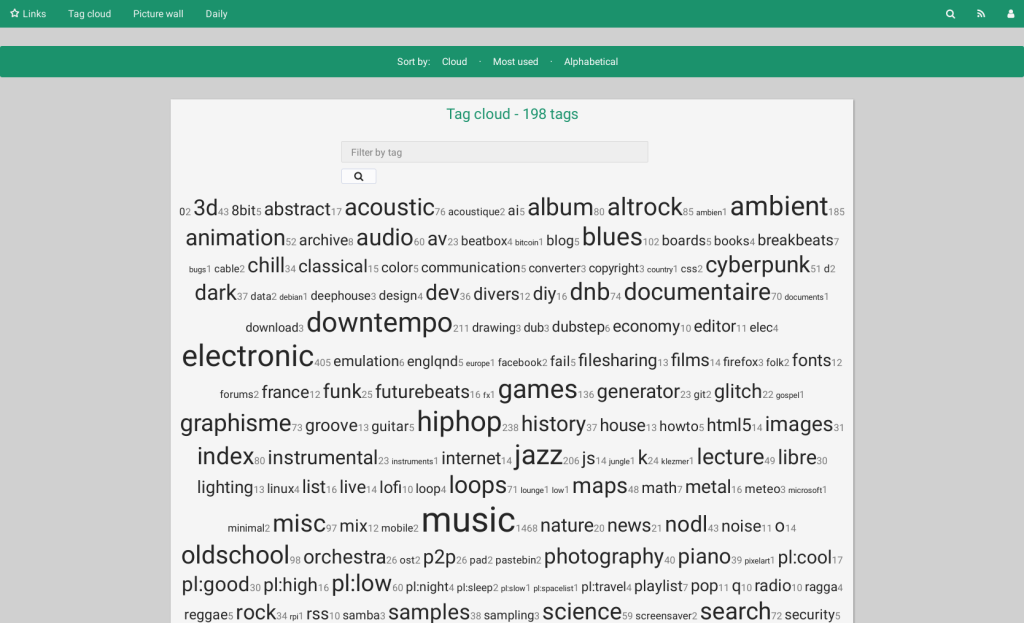
I’m very content using Raindrop.io as my main bookmarking hub, but also try to be prepared for when any external service I rely on decided to turn evil (this has happened quite a bit over the years). There are many self-hosted similar tools like Raindrop, and we’ll look at one today.
Shaarli (GH) is a simple, self-hosted bookmarking tool that helps us save and organize links we find online. Beyond just storing bookmarks, you can use Shaarli as a:
- mini blog platform
- read-later service
- notepad for drafting ideas
- knowledge base for documentation and code
It’s is super fast and lightweight as it stores everything in a single file instead of a database. This makes it perform well even with thousands of saved links and makes backups super easy.
With Shaarli, you can:
- Edit URLs, titles, descriptions, and tags
- Get a unique link for each bookmark
- View your collection as a list or daily digest
- Keep some bookmarks private and share others publicly
- Extend functionality with plugins
- Connect to other services via API
Since you run the service, you maintain complete ownership of your data. It doesn’t send any tracking information or personal data to developers, keeping your browsing habits private.
Shellfirm

I’m a big believer in a Bash-first principle when it comes to scripting tasks. While others might turn to some other interpreted language, Bash is ubiquitous, packed with features, easily extendable in a cross-platform manner, and can take direct advantage of other CLI tools one might have lying around.
Bash scripts are also notorious for being cobbled together, riddled with problematic assumptions, and potentially getting into a state where even one designed to be benign can cause harm.
Back in the very, very earl days of the Drop, we covered ShellCheck. If you don’t use this when you write EVERY Bash script you are, indeed, a monster. It’s one of the best ways to save yourself from footguns.
Shellfirm is another terminal safety tool designed to protect us from executing potentially destructive commands. It works by intercepting risky command patterns and presenting a verification challenge before execution, functioning like a captcha for your terminal.
It evaluates shell commands in the background and when it detects a risky pattern, it immediately prompts you with a relevant warning and a challenge to verify your intention. For example, if you try to run rm -rf /, it will display a warning about deleting everything in the path and ask you to solve a simple math problem before proceeding.
The tool supports three types of verification challenges:
- Maths: Solve a simple math question (default)
- Enter: Press Enter to continue
- Yes: Type “yes” to proceed
You can always cancel a risky command by pressing Ctrl+C.
Shellfirm supports multiple shells:
Oh My Zsh:
# Download the plugin
curl https://raw.githubusercontent.com/kaplanelad/shellfirm/main/shell-plugins/shellfirm.plugin.oh-my-zsh.zsh --create-dirs -o ${ZSH_CUSTOM:-~/.oh-my-zsh/custom}/plugins/shellfirm/shellfirm.plugin.zsh

# Add to plugins in ~/.zshrc
plugins=(... shellfirm)
Bash:
# Download bash-preexec hook
curl https://raw.githubusercontent.com/rcaloras/bash-preexec/master/bash-preexec.sh -o ~/.bash-preexec.sh
echo '[[ -f ~/.bash-preexec.sh ]] && source ~/.bash-preexec.sh' >> ~/.bashrc

# Download shellfirm plugin
curl https://raw.githubusercontent.com/kaplanelad/shellfirm/main/shell-plugins/shellfirm.plugin.sh -o ~/.shellfirm-plugin.sh
echo 'source ~/.shellfirm-plugin.sh' >> ~/.bashrc
Fish:
curl https://raw.githubusercontent.com/kaplanelad/shellfirm/main/shell-plugins/shellfirm.plugin.fish -o ~/.config/fish/conf.d/shellfirm.plugin.fish
Zsh (without Oh My Zsh):
curl https://raw.githubusercontent.com/kaplanelad/shellfirm/main/shell-plugins/shellfirm.plugin.zsh -o ~/.shellfirm-plugin.sh
echo 'source ~/.shellfirm-plugin.sh' >> ~/.zshrc
Shellfirm comes with predefined groups of risky commands. By default, the base, git, and fs groups are enabled. Other groups like kubernetes, terraform, and heroku are disabled by default.
You can customize your configuration with these commands:
- Update command groups:
shellfirm config update-groups - Change challenge type:
shellfirm config challenge - Ignore specific patterns:
shellfirm config ignore - Deny specific commands:
shellfirm config deny
After installation, open a new shell session and try a command like git reset --hard to verify that shellfirm prompts you with a challenge. If you don’t get a prompt, check that shellfirm --version returns a valid response and that you’ve properly installed the shell plugin.
I’ve been getting into to the habit of running this whenever I download the shell script from the increasingly use of the curl|bash dark pattern by FOSS projects (please don’t just run those commands without some eye glance at the script). It hasn’t broken any of the installers, and — so far — no evil has been caught. The prompts also don’t really slow down the process much.
It’s also a nice tool to have around and also run after you’ve perfected your latest Bash creation.
FIN
Remember, you can follow and interact with the full text of The Daily Drop’s free posts on:
- 🐘 Mastodon via
@dailydrop.hrbrmstr.dev@dailydrop.hrbrmstr.dev - 🦋 Bluesky via
https://bsky.app/profile/dailydrop.hrbrmstr.dev.web.brid.gy
☮️
 hrbrmstr's Daily Drop
Leave a comment