jsome; detox; rename
These three utilities (and Jora, from the other day) were items I had to use this week and noticed I had not covered them in a Drop before. They’re each pretty handy in their own way.
TL;DR
(This is an LLM/GPT-generated summary of today’s Drop using Ollama + Qwen 3 and a custom prompt.)
jsomeis a Node.js utility that enhances JSON readability in the console with color and formatting, offering options like indentation dots and pretty-printing from the command line (https://github.com/Javascipt/Jsome)detoxis a tool for renaming files with problematic characters or encoding, making filenames safer and more portable on Unix-like systems (https://github.com/dharple/detox)renameis a flexible Perl-based command-line tool for batch renaming files, supporting a wide range of transformations and switches for customizing filename modifications (http://plasmasturm.org/code/rename/)
jsome
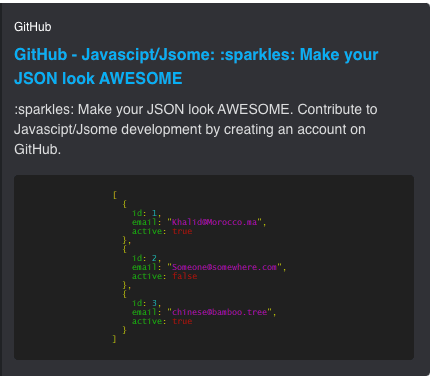
I pondered tagging this in at the end of the previous JSON-focused Drop, but it’s cool enough to warrant a dedicated section.
Jsome is a Node.js (et al.) utility designed to enhance the readability of JSON objects in the console by adding color and formatting options. Its primary purpose is to “make your JSON look awesome” when debugging or inspecting data structures in terminal environments. The feature I find most useful is the indentation dots, but the feature set is small enough to warrant a quick walk-through.
Install locally with
$ npm install jsome
or globally for CLI use:
$ npm install -g jsome
You can pretty-print JSON files directly from the command line:
$ jsome /path/to/your/file.json
Or pipe JSON data:
cat file.json | jsome
NOTE: be careful with this option. It does some odd buffer read things and will start processing JSON mid-stream on larger files piped from curl.
Options include:
-cto toggle colors (default:true)-lto show levels (default:false)-sfor tab spaces (default:2b/c they’re not monsters)-rto output valid JSON (default:true)
As noted, this nesting level guide is what makes it useful for me in a pinch:
$ jsome -cl tags.json | head -20
{
. tags: [
. . {
. . . id: "f41d94bf-7491-4c43-b331-ebf0921be4b5",
. . . label: "GENERIC_PHPINFO_ACCESS_ATTEMPT",
. . . slug: "generic-phpinfo-access-attempt",
. . . name: "Generic PHPInfo Access Attempt",
. . . category: "activity",
. . . intention: "suspicious",
. . . description: "IP addresses with this tag have been observed attempting to access an endpoint containing the string "phpinfo", a very common debug page, which likely indicates scanning activity.",
. . . references: ["https://www.php.net/manual/en/function.phpinfo.php"],
. . . recommend_block: false,
. . . cves: [],
. . . created_at: "2025-05-21",
. . . related_tags: []
. . },
. . {
. . . id: "553b5765-6241-4e9a-9982-0ca113796134",
. . . label: "SOCKS5_PROXY_SCANNER",
. . . slug: "socks5-proxy-scanner",
detox

detox is designed to make filenames safer and easier to work with on Linux and Unix-like operating systems. It addresses common problems in file management, such as filenames containing spaces or special characters that can cause issues in scripts, command-line operations, or when transferring files between systems. I found it this week when one of my document scraper routines downloaded a whole bunch of HTML and PDF files with spaces and a bunch of other oddities in their names (thanks, U.S. Gov) and didn’t feel like coming up with a proper regex for the utility in the last section (b/c I figured someone had to have made something like this already).
Detox renames files by replacing problematic characters—such as spaces, dollar signs ($), and others—with underscores (_ — and, yes, that means the developer is a monster). It can also handle character encoding conversions, specifically transcoding the upper portion of ISO-8859-1 (Latin-1) and CP-1252 to UTF-8. This makes files more portable and less likely to cause errors when used in scripts or across different platforms.
Detox can be installed from source or via package managers. Building from source requires standard development tools such as autoconf, automake, bison, flex, gcc, make, and pkg-config. Detailed instructions are provided for Debian-based systems, macOS, FreeBSD, NetBSD, and MSYS2.
I’d blather more, but it does this one thing (really well)!
rename

I had need to build some scripts to do some mass queries of Elasticsearch this week and realized after the fact that I wanted to organize them better (subdirectory tree vs. label-YYYY-MM-DD.json). A tool I keep around for this particular situation is rename, since I am too lazy to write my own bash/zsh aliases or remember the one-liners I only rarely use. It’s a highly flexible command-line tool for batch renaming files, offering a rich set of options for transforming file names according to specified rules.
NOTE: it’s a Perl script, so if that’s a non-starter for you, then you’re done with the Drop for the day!
It operates by taking a list of files (either as command-line arguments or via standard input) and applying a series of transformation rules to each filename. If the resulting name differs from the original, the file is renamed accordingly. If no filenames are specified on the command line, it expects a list from standard input, making it suitable for use in pipelines with tools like find or grep.
The tool distinguishes between switches (which control behavior) and transforms (which modify filenames). This is a pretty important demarkation, so I will gladly copy some manual page output into the Drop (as they did for their main page) to show the differences (and to help show off the utility of the program):
Switches include:
-f/--force: Overwrite existing files without prompting.-i/--interactive: Prompt before overwriting files.-n/--dry-run: Show what would be renamed, but make no changes.-p/--mkpath: Create directories as needed for moved files.-v/--verbose: Print detailed information about actions.-0/--null: Read filenames separated by NUL, for compatibility with tools likefind -print0.-g/--glob: Expand wildcards, useful on shells that do not do so.-k/--backwards: Process files in reverse order, helpful to avoid name collisions during renaming.-l/--symlinkand-L/--hardlink: Create links instead of renaming.-M/--use=Module: Load Perl modules for extended transformations.-T/--transcode: Handle filename encodings.-N/--counter-format: Format a counter variable for sequential renaming.
Transforms are applied in order and can be used multiple times:
-a/--append=STR: Append a string to each filename.-A/--prepend=STR: Prepend a string.-c/--lower-case: Convert filenames to lowercase.-C/--upper-case: Convert to uppercase.-s/--subst FROM TO: Substitute text in the filename.-S/--subst-all FROM TO: Replace all occurrences.-x/--remove-extension: Strip the last extension.-X/--keep-extension: Temporarily remove and restore the extension after other transforms.-z/--sanitize: Clean up filenames by removing whitespace, control, and meta characters.-e/--expr=CODE: Apply a Perl expression to each filename.- Additional options allow for camel-casing, URL unescaping, whitespace normalization, and more.
Within Perl expressions (-e), several variables are available:
$_: The current filename.$N: An incrementing counter, format controlled by-N.$EXTand@EXT: Hold file extensions removed by-X, allowing for complex manipulations while preserving extensions.
Here are some use-cases:
$ rename -x *.bak # remove `.bak` extension from all `.bak` files
$ rename -s .tgz .tar.gz -s .tbz2 .tar.bz2 *.t?z* # substitute `.tgz` with `.tar.gz` and `.tbz2` with `.tar.bz2`
$ rename -n -s bar baz -s foo bar * # dry run to preview changes
$ rename -p -c -z -X -e '$_ = "$EXT/$_" if @EXT' * # move files into extension-based directories, lower-case, and sanitize
$ find somedir -print0 | rename -0 -e 'print "$_\n"' # recursive renaming using `find`
$ rename -N ...01 -X -e '$_ = "File-$N"' * # number files sequentially, preserving extensions
$ rename -X --camelcase --nows * # capitalize every word in the filename, preserving the extension
Being able to use Perl code for transformations (via -e) and to load CPAN modules (-M) allows for advanced tasks, such as transliterating Unicode filenames, sorting images by EXIF date, or decoding MIME-encoded names.
This gets installed on every new interactive POSIX system I set up.
FIN
Remember, you can follow and interact with the full text of The Daily Drop’s free posts on:
- 🐘 Mastodon via
@dailydrop.hrbrmstr.dev@dailydrop.hrbrmstr.dev - 🦋 Bluesky via
https://bsky.app/profile/dailydrop.hrbrmstr.dev.web.brid.gy
☮️
 hrbrmstr's Daily Drop
Leave a comment