Userspace systemd Timers
Friend of the Drop, Dr. Ross, asked me what I’m using in the “scheduled job” space, since we’ve covered quite a few solutions, and I’m always feeling pretty bad that I tend to revert to good ol’ cron after each replacement attempt.
At work, we’ve settled on n8n, primarily due to the bonkers number of integrations it has. My side projects rarely need that, so maintaining an n8n infrastructure is an innovation token that I really don’t want to spend.
Cronjobs have been around a very long time, and they work, but have many flaws. You have to be pretty deliberate about how you log things. You also can’t really (easily) make one job depend on the successful run of another job.
Say what one might about the many daft choices made by those who develop systemd, I have begun to migrate cron setups on various Linux systems to systemd timers. So, we’ll take the opportunity Noam provided to talk a bit about them in todays Bonus/Knowledge Drop.

systemd Timers
As asserted in the preamble, systemd timers offer a more flexible and capable alternative to cron for scheduling tasks on Linux systems. The core concept is that systemd timers let us schedule tasks to run at specific times or intervals. However, they’re also more integrated with the systemd init system and offer additional features.
They’re composed of two files: a .timer file that defines when the task should run, and a .service file that defines what should be executed. They look like this:
~/.config/systemd/user/super-cool.service:
[Unit]
Description=Super Cool Service

[Service]
ExecStart=/home/bob/jobs/super-cool-service.sh
Restart=on-failure

[Install]
WantedBy=default.target
~/.config/systemd/user/super-cool.timer:
[Unit]
Description=Run Super Cool Service daily at 03:00

[Timer]
OnCalendar=*-*-* 03:00:00
Persistent=true

[Install]
WantedBy=timers.target
The “when this thing should run” OnCalendar component is also a fair bit more capable than cron’s method. So much so, that it’s worth reverting to a list than trying to paragraph-ify them:
- Calendar-based scheduling:
OnCalendarallows you to specify when a timer should trigger based on calendar dates and times, similar to cron but with more flexibility. - Syntax flexibility: The basic syntax is “DayOfWeek Year-Month-Day Hour:Minute:Second”, but you can omit parts or use wildcards for more general scheduling.
- Wildcard support: You can use asterisks (*) to match any value in a field, allowing for recurring schedules.
- Day of week specification: You can use three-letter abbreviations (e.g., Mon, Tue) or full day names to specify days of the week.
- Date ranges: Use two dots (..) to specify a range of values, like “Mon..Fri” for weekdays.
- Lists: You can use commas to specify multiple values for a field, like “Mon,Wed,Fri” for specific days.
- Time intervals: Use a forward slash (/) to specify intervals, like “*:00/15:00” for every 15 minutes.
- Special time expressions: You can use words like “hourly”, “daily”, “weekly”, “monthly”, or “yearly” for common intervals.
- Relative dates: Use “~” to specify relative dates, like the last day of the month.
- Timezone support: You can specify a timezone at the end of the
OnCalendarvalue. - Multiple entries: You can have multiple
OnCalendarentries in a single timer unit for complex schedules. - Accuracy control: Works with
AccuracySecto control the precision of the timer execution. - Persistent timers: Can be combined with
Persistent=trueto ensure missed events are triggered on system startup. - Testing and validation: You can use the systemd-analyze calendar command to test and validate
OnCalendarexpressions.
To enable and start the timer, it’s just:
systemctl --user enable super-cool.timer
systemctl --user start super-cool.timer
Checking the status is equally as easy:
systemctl --user status super-cool.timer
And, to see when the timer will next trigger, it’s:
systemctl --user list-timers
NOTE! You will need to do the following to ensure this all works when you’re not logged in:
sudo loginctl enable-linger ${USER}
And, if you ever change anything, you should get into the habit of doing:
systemctl --user daemon-reload
We can now use journalctl to view logs for a specific timer and its associated service:
journalctl --user -u super-cool.timer -u super-cool.service
And, you can see the logs for all timers with:
journalctl -t systemd _SYSTEMD_UNIT=*.timer
You can also use --since/--until with journalctl, to narrow down the range, or -n # to see the last # of entries. Using --follow will watch for new entries; and, -o json will give us lovely JSON vs. ugly, pseudo-structured output.
We’re using user-space timers/services since it is unlikely you need more privileged access, and keeping permissions and privileges tight is always a good idea.
The One Time Dependencies Are Good!

To have one systemd timer depend on another, you can use the Requires= and After= directives in the [Unit] section of the timer unit file. This lets us create a sequence of timers that run in a specific order. Here’s a detailed explanation with a practical example:
Let’s say we have a backup system with two components:
- a database backup
- a file system backup
Now, we want to ensure that the database backup always runs before the file system backup, and that the file system backup only starts if the database backup was successful.
Here’s how we can set this up:
- Create the database backup timer (db-backup.timer):
[Unit]
Description=Daily database backup timer

[Timer]
OnCalendar=*-*-* 01:00:00
Persistent=true

[Install]
WantedBy=timers.target
- Create the file system backup timer (
fs-backup.timer):
[Unit]
Description=Daily file system backup timer
Requires=db-backup.timer
After=db-backup.timer

[Timer]
OnCalendar=*-*-* 02:00:00
Persistent=true

[Install]
WantedBy=timers.target
- Create the corresponding service files (
db-backup.serviceandfs-backup.service) to define the actual backup commands.
In this setup:
- The database backup is scheduled to run daily at 01:00
- The file system backup is scheduled to run daily at 02:00
- The
Requires=db-backup.timerline in thefs-backup.timerensures that thedb-backuptimer is active before thefs-backuptimer can start. - The
After=db-backup.timerline ensures that thefs-backuptimer will only start after thedb-backuptimer has finished.
This configuration provides several benefits:
- Sequencing: the backups will always run in the correct order.
- Dependency: if the database backup timer fails or is disabled, the file system backup won’t run, preventing potential inconsistencies.
- Flexibility: we can easily adjust the timing of each backup independently while maintaining their relationship.
To activate these timers (this is at the system level, but you can make them user-space too):
systemctl enable db-backup.timer
systemctl enable fs-backup.timer
systemctl start db-backup.timer
systemctl start fs-backup.timer
This example demonstrates a practical use case for timer dependencies in a backup scenario, but the same principle can be applied to any situation where we need to ensure that certain scheduled tasks run in a specific order or depend on the completion of other tasks.
Remember that while the timers have dependencies, you should also ensure that the corresponding service units (db-backup.service and fs-backup.service) are properly configured to exit with the correct status codes. This way, if the database backup fails, the file system backup service won’t start, even if its timer has been triggered.
Of Course There’s a TUI
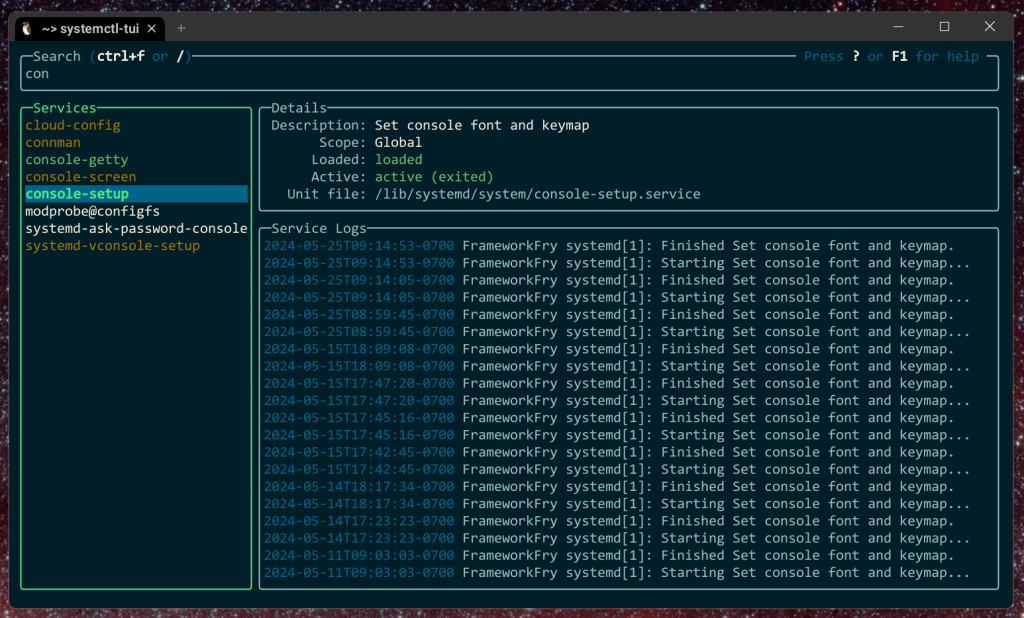
I tend to make Zsh/Bash functions or small scripts to abstract away the verbosity of journalctl CLI incantations, but there’s a more visual way to view and manage services/timers.
systemctl-tui is a Terminal User Interface (TUI) tool designed to simplify interactions with systemd services and their logs on Linux systems. It provides a fast and simple way to browse service status, view logs, and manage (start/stop/restart) systemd services.
I’ve aliased it to stui, but you can fly your CLI flags any way you like.
FIN
As usual, the Arch Wiki has pretty much everything you need to dig deeper into systemd timers and start migrating your cronjobs to this new structure.
Remember, you can follow and interact with the full text of The Daily Drop’s free posts on Mastodon via @dailydrop.hrbrmstr.dev@dailydrop.hrbrmstr.dev ☮️
 hrbrmstr's Daily Drop
Leave a comment