logalize; ch; Lexical Differential Highlighting;
No Bonus Drop this past weekend due to #NoKings, hayrides with the grandkids, and #2.1’s 4th birthday celebration.
We revisit a sparse, reoccurring theme of “highlighting” in today’s Drop, only one of which is source code-related.
TL;DR
(This is an LLM/GPT-generated summary of today’s Drop. This week, I’m playing with Ollama’s “cloud” models for fun and for $WORK (free tier, so far), and gave gpt-oss:120b-cloud a go with the Zed task. Even with shunting context to the cloud and back, the response was almost instantaneous. They claim to now keep logs, context, or answers, but I need to dig into that a bit more.)
- Logalize provides a fast, extensible YAML‑configured log colorizer that lets you define formats, patterns, words and themes to highlight logs as they stream (https://github.com/deponian/logalize)
chis a tiny Go utility that highlights specified words in a live text stream without regex or config, letting you color‑code errors, warnings, etc., on the fly (https://github.com/dtonon/ch)- Lexical Differential Highlighting colors tokens based on a hash of their characters, making visually similar code elements distinct without parsing, as described in the 2019 Words and Buttons post (https://wordsandbuttons.online/lexical_differential_highlighting_instead_of_syntax_highlighting.html)
logalize
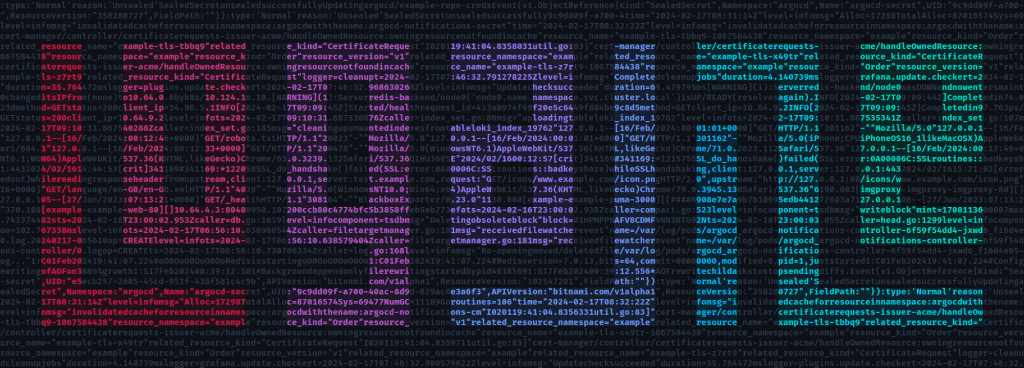
Logs can be brutal to read. Endless lines of monochrome text flying by, each one daring you to spot the anomaly before it scrolls offscreen. Logalize exists, ostensibly, to make that pain go away. It’s a fast, extensible log colorizer that seeks to turn chaos into clarity.
Most log colorizers are more opinionated than even I am. They assume they know what matters to you, hardcoding patterns that can’t be changed. Logalize flips that script with a (ugh) YAML configuration file that defines everything: formats, patterns, word groups, and themes. You don’t just get to tweak a theme; you can rewire the logic of how lines are parsed and painted. Want to colorize only certain HTTP status codes or match your own custom app logs? Write it once in logalize.yaml (hey, no tool is perfect) and it just works.
When Logalize runs, it reads one line at a time, stripping out any ANSI noise, and checking if the line matches a full format you’ve defined. If it doesn’t, it takes a furthe look for regex patterns or specific words to highlight. So, context matters! Its lemmatizer even understands that “completed” is just “complete” in disguise. It can also flip meaning when negations show up, so “not successful” is treated like “failure.”
You describe what’s important using four concepts. Formats define entire lines, like a full Apache access log entry. Patterns are flexible regex snippets for things like IPs or UUIDs. Words are for smart keyword highlighting, backed by lemmatization and negation logic. Themes define how all of that looks—foregrounds, backgrounds, and styles—with colors expressed in hex or ANSI codes. Together, they form an extensive and coherent color grammar for your logs.
Installation is refreshingly boring as packages exist for Debian, Fedora, Arch, and macOS (via Homebrew). Go folks can grab it straight from source. Once installed, pipe your logs through it and watch the noise disappear: cat app.log | logalize. You can choose from built-in themes like tokyonight-dark, or disable all defaults to work only with your own definitions.
If you “live in logs” and have not checked this one out yet, I’d suggest carving out 15 minutes to give it a go.
ch

ch is a tiny Go project that’s simple by design. It doesn’t parse logs, it doesn’t do fancy regexes, and it doesn’t pretend to know what your app is doing. It just sits quietly in a pipeline and paints the words you care about as they go by. That’s it. And that’s also enough to make it a mandatory add to the default-install toolbox.
You feed it a stream of text, say from tail -f, docker logs -f, or journalctl -f, and then tell it what to watch for. Maybe you want “error,” “warning,” and “success” to pop. You run something like:
tail -f app.log | ch error warning success
and your terminal feels instantly more dapper. Those tiny bursts of color are like meatspace highlighters sliding across a textbook. This textbook, however, is on fire and the highlighters beep when things get bad. (There’s actually a flag for that now: -a makes ch emit a little ding whenever it sees a match. The author added that in October!)
ch never gets in your way. No regex tax unless you want it. No elaborate YAML config. It’s for the moments when grep –color isn’t enough, and logalize feels like overkill. It’s just: “show me what I care about, right now, while it’s happening.”
Installing it is a (hacky) one-liner if you’ve got Go:
git clone https://github.com/dtonon/ch && cd ch && go build -o ch && sudo mv ch /usr/local/bin/
After that, it’s your terminal’s new bff. You can tell it to use background colors with -b, make matches case-sensitive with -s, and give specific colors to specific tokens. Something like:
ch -b error::red warning::orange info::00FF00
Colors have names (red, green, orange, blue, pink, purple) or you can use hex codes if you’re fancy. It’s all ANSI under the hood, so it works anywhere you’d normally see colored output. If your pipeline suddenly stops showing output, that’s probably because your command started buffering. On macOS, wrap it with script -q /dev/null or expect’s unbuffer; on Linux, stdbuf -oL usually does the trick.
ch supports “presets”, and these ones seem to work well for different kinds of streams:
# journalctl: show system weirdness
alias chsys='journalctl -f | ch -b error::red fail::red warn::orange critical::purple info::blue'

# nginx: see slow or scary traffic in color
alias chweb='tail -f /var/log/nginx/access.log | ch -b 500::red 404::orange 200::green POST::blue GET::purple'

# general-purpose log watcher
alias chw='stdbuf -oL "$@" | ch -b error::red warn::orange fail::red success::green info::blue'
You’ll find yourself creating your own presets in no time.
We need way more focused, small utilities like this, and far fewer vibe-coded nightmare ones.
Lexical Differential Highlighting
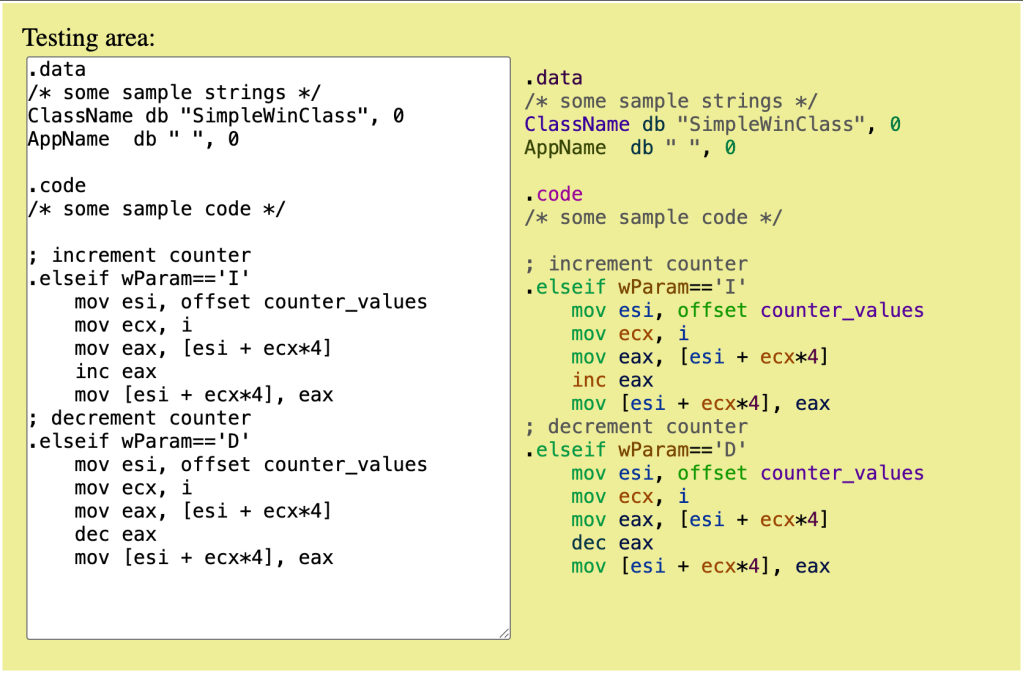
Thanks to a 2019 post by Oleksandr Kaleniuk that recently surfaced back into the zeitgeist, I learned about something called “Lexical Differential Highlighting” (LDH). It’s a highlighting technique that makes no effort to try to understand your code the way traditional syntax highlighting does. It cares not a whit what’s a “keyword” or what’s a “variable”. Instead, it leans into how our eyes and brains actually work when we’re reading code.
Traditional syntax highlighting paints categories. It tells us what kind of thing each word is supposed to be. But that doesn’t help much when two tokens look almost the same yet do wildly different things. A great example Kaleniuk gives is trying to tell the difference between pmulhw and pmulhuw in assembly. In traditional highlighting idioms, they get the same color, so you end up reading letter by letter, hoping you don’t mistake one for the other.
LDH flips the logic. It says, “If two tokens look similar, make them look very different”. The whole point is to help our eyes see what our brains need to notice, which is the difference between the tokens. Tokens that already look distinct can share colors. That’s the inverse of traditional highlighting, and it’s pretty effective.
It turns out implementing LDH is super straightforward. You tokenize by splitting on the usual suspects (i.e., spaces, operators, whatever). Then you give each token a color derived from a hash of its characters. Oleksandr used a neat trick: summing character codes multiplied by position-based weights [1, 7, 11, 13]. The primes ensure that character order matters, so “abc” and “bca” don’t collide. That’s it. The entire highlighter fits in about 30 lines of code, though after some tests on non-assembly code, I think we’d need to build a slightly smarter one for most modern programming languages.
It lowers cognitive load when working with dense code (e.g., assembly source files), math-heavy functions, and config files. Our eyes can instantly see that movl and movq aren’t the same, or that %eax isn’t %ecx. And it helps us start recognizing patterns instead of decoding them.
The general concept works for any language, since the technique doesn’t need to parse or understand. It just needs to make things that look similar appear distinct. Later, the author layered on a hybrid mode, graying out comments and strings so they fade politely into the background while the meaningful tokens pop with difference.
I’m starting to see some academic research that suggests our shunting of comments to the background is the inverse of what we should be doing. More on that in a later Drop.
This small, elegant correction to decades of visual convention is a reminder that sometimes the best tools aren’t necessarily “technically” smarter; they’re just designed better for us humans.
FIN
Remember, you can follow and interact with the full text of The Daily Drop’s free posts on:
- 🐘 Mastodon via
@dailydrop.hrbrmstr.dev@dailydrop.hrbrmstr.dev - 🦋 Bluesky via
https://bsky.app/profile/dailydrop.hrbrmstr.dev.web.brid.gy
☮️

 hrbrmstr's Daily Drop
Leave a comment