It *Was* Just Pining For The Fjords!; Isocons; Reasonable Colors
Just as I was finishing up Monday’s Drop we had a loud explosion on a nearby main road, followed by the whirring sound of our generator kicking in. Turns out a squirrel met their untimely demise, taking the transformer with it to the grave. Internet went away shortly thereafter, and after getting the 5G backup going, and attending to all the beeping UPSes in the house (to silence them), I forgot all about the Drop’s markdown version open on the personal system, and went about the rest of the workday. Sigh.
So, you get this plus the usual typography edition both in one day (again).
TL;DR
(This is an AI-generated summary of today’s Drop using Ollama + llama 3.1b and a custom prompt.)
- The GNU Screen multiplexer has released a new version, 5.0.0, featuring new commands and escape sequences such as password protection, customizable status messages, true color support, and multi-input capabilities (https://www.gnu.org/software/screen/).
- Isocons is a collection of free isometric icons that can be customized and used as SVG or PNG images, ideal for illustrating complex objects or processes in a visually appealing way (https://www.isocons.app/).
- Reasonable Colors is an open-source color system designed to assist developers and designers in creating accessible and aesthetically pleasing color palettes, built within the LCH color space and offering flexibility in color formats (https://www.reasonable.work/colors/).
It *Was* Just Pining For The Fjords!
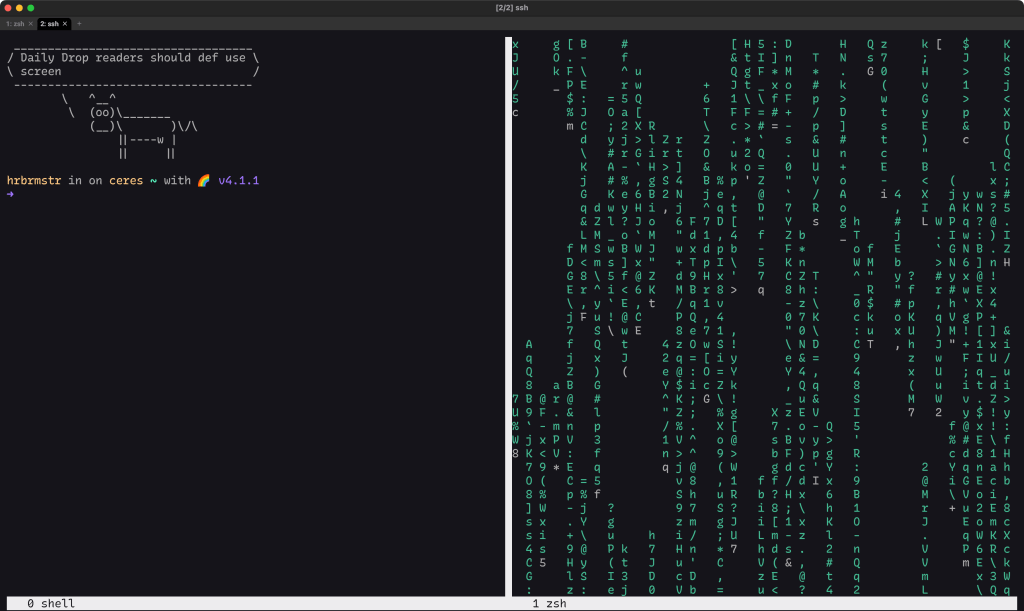
Last Wednesday, we covered a resource that suggested a handful of venerable Linux commands were now obselete. GNU screen was in that list, and I did suggest that you’d have to pretty much off me to get me to stop using it.
Well, on August 28th, Alex Naumov announced there was a brand new 5.0.0 version of screen! It had been over a year since the last 4.x series release, but some things are 100% worth waiting for. (If you’re looking to adopt a project, they’re looking for a new maintainer.)
Some new commands and escape sequences include:
auth [on|off]: Provides password protection for sessions.status [top|up|down|bottom] [left|right]: Allows moving status messages to any corner of the screen.truecolor [on|off]: Enables true color (24-bit) support.multiinput: Supports input to multiple windows at the same time.escape %T: Shows the current TTY for a window.escape %O: Displays the number of currently open windows.
The manual is very accessible and comprehensive. It’s worth spending the time in it if you want to get the most out of this multiplexer, but let’s poke a bit at what you can do with this fun CLI toy (I do realize nothing I can say will convince woefully misguided tmux users to switch.)
One useful thing to do with screen is to split the screen into regions. Horizontal splits are done by pressing Ctrl+a followed by Shift+S (uppercase S). Vertical ones are made via Ctrl+a followed by | (the pipe character). You can switch to new splits via Ctrl+a followed by TAB to switch to the new split region. And, we can create a new virtual terminal “window” in a new split region, via Ctrl+a followed by c (that will create a new window with a shell prompt).
To close an inactive split region, press Ctrl+a followed by Q (uppercase Q). To save and load layouts, first use Ctrl+a followed by : to enter command mode. Then, type layout dump filename to save the current layout and later load it with source filename in command mode. If you need to move focus within the screen, enter command mode (Ctrl+a followed by :) and use the focus command with directions like up, down, left, right, top, or bottom. To detach the screen session and put it in the background, press Ctrl+a followed by d. You can resume the session later with screen -r. For renaming windows, press Ctrl+a followed by A. To list all available windows, press Ctrl+a followed by ".
Finally, you can bundle up some defaults into a .screenrc file, and this is one of my most used ones:
# General Settings
startup_message off  # Disable the startup message
vbell off            # Disable the visual bell
vbell_msg ""         # Set the visual bell message to empty

# Escape Character
escape ^Jj           # Set the command character to Ctrl+J (and Ctrl+j as the literal key)

# Hard Status Line
hardstatus on        # Enable the hard status line
hardstatus alwayslastline  # Display the status line at the bottom of the screen
hardstatus string "%{.kW}%-w%{.W}%n %t%{-}%{=b kw}%?%+w%? %=%c %Y-%m-%d"  # Customize the status line format

# Color and Encoding
truecolor on         # Enable true color (24-bit) support
defutf8 on on        # Enable UTF-8 encoding by default for new windows

# Scrollback Buffer
defscrollback 5000   # Set the default scrollback buffer size to 5000 lines

# Multiuser Support
multiuser on         # Enable multiuser support

# Initial Window Setup
screen -t shell 0 zsh  # Create a new window with zsh and title it "shell"
select 0               # Select the first window by default
Isocons
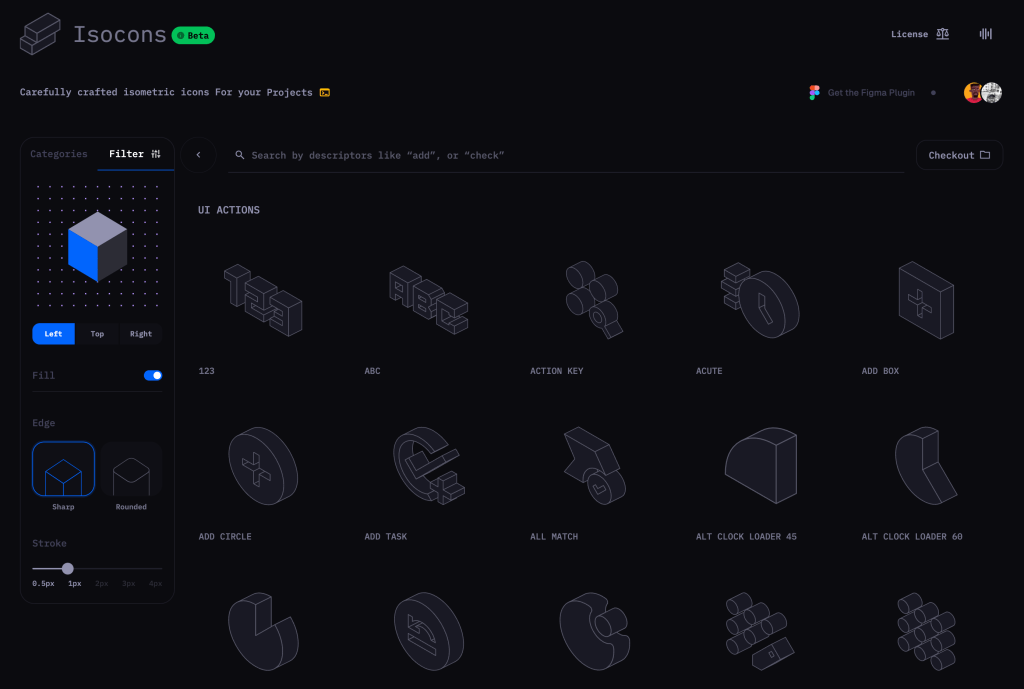
Isometric icons are a form of graphic design that presents three-dimensional objects on a two-dimensional plane by drawing them at a 30-degree angle, creating the illusion of a bird’s-eye view. This technique provides more depth and visual appeal compared to traditional flat icons.
The depth and dimension of isometric icons make them eye-catching due to their 3D structure. And, they help create a deeper visual experience compared to flat designs. They ideal for illustrating complex objects or processes in a simple, understandable way (think “IKEA docs”). They’re pretty versatile, and you’ve 100% seent them used in various applications such as logos, landing pages, infographics, and more.
Isocons is a collection of free (CC BY 4.0) isometric icons that you can customize and use as SVG or PNG images.
The site is gorgeous, and the UX was well-crafted, right down to the sounds (yes, sounds).
I highly suggest lingering there for a bit. You will almost certainly pick and download a few icons if you do.
Reasonable Colors
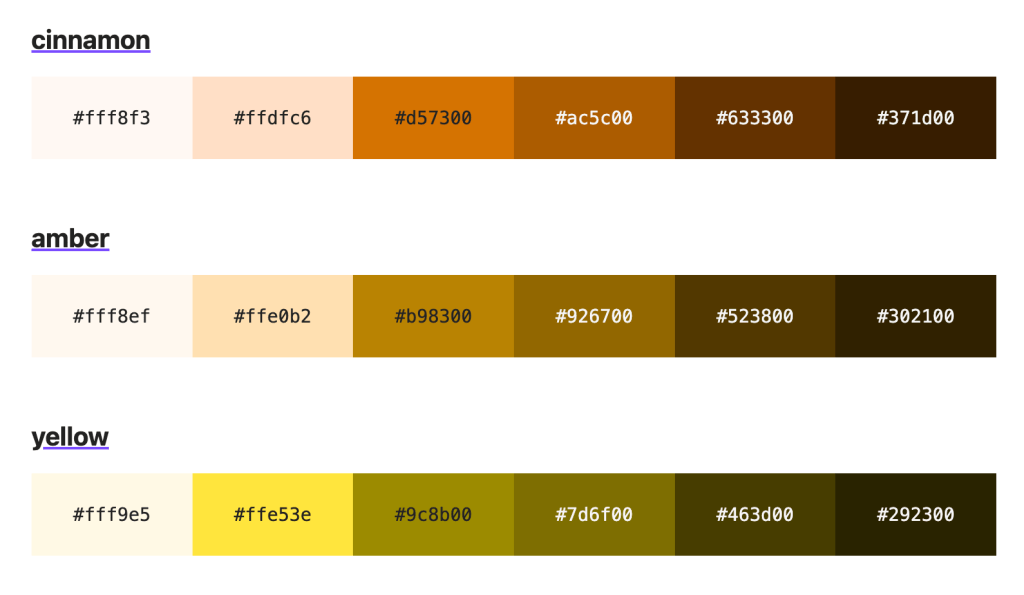
Reasonable Colors is an open-source color system designed to assist developers and designers in creating accessible and aesthetically pleasing color palettes. The system is built within the LCH (Lightness, Chroma, Hue) color space, which ensures high contrast and accessibility across its 24 color sets.
Each color in Reasonable Colors comes in six numbered shades, facilitating compliance with WCAG 2 contrast guidelines. For instance, a shade difference of two ensures a contrast ratio of at least 3:1, while a difference of three achieves a contrast ratio of 4.5:1 or greater, and a difference of four provides a contrast ratio of 7:1 or more. These numbered shades make it easy to match colors to the desired contrast level.
The 24 color sets are uniformly spaced, with each hue 15° apart on the LCH color wheel. This consistent arrangement makes it simple to find complementary color pairs and build cohesive palettes. Furthermore, Reasonable Colors offers flexibility by providing color formats in hex, HSL, RGB, and LCH, making it adaptable to a range of design needs, including wide gamut color spaces.
You can integrate Reasonable Colors into projects by linking a single CSS file or by installing it via NPM. Once installed, colors can be easily defined using CSS variables such as --color-COLORNAME-SHADE. For example, setting a background color could be as simple as:
code {
  background-color: var(--color-magenta-2);
}
This simple structure lets us easily customize our own palettes for any given project.
For more information and resources, you can visit the GitHub repository or participate in discussions on Reddit.
FIN
Remember, you can follow and interact with the full text of The Daily Drop’s free posts on Mastodon via @dailydrop.hrbrmstr.dev@dailydrop.hrbrmstr.dev ☮️
 hrbrmstr's Daily Drop
Leave a comment