capture-website & Friends; Sample Capture Script; gowitness
The Bonus Drop is still coming, but it took way longer to get #4 outfitted with a new suit + accouterments than I thought it would, and the daft “Fall Back” hit my SAD a bit harder than expected.
The aforementioned suit-purchasing was for #4’s Senior Picture day. Since he’s going to be on Candid Camera, I figured we should also take a lens to your websites with a look at some webshotting/web-screenshotting tools.
TL;DR
This is an AI-generated summary of today’s Drop.
Boy do I feel seen by this AI.
The first section discusses the author’s frustration with the process of capturing screenshots for work, leading to the creation of a CLI tool that uses capture-website. This tool targets the CSS selector of the element to be captured and saves an image. It uses Puppeteer (Chrome) under the hood, which provides a high-level API to control Chrome or Chromium over the DevTools Protocol. The author also provides a detailed guide on how to install and use the tool, along with its advanced features and options.
The second section provides a bash script that the author created to make the best use of the utility mentioned in the first section. The script checks if the CLI and ImageMagick are installed, caches a copy of the GN mascot to add as a watermark, ensures a GN Visualizer URL is on the clipboard, and takes a webshot of the specified URL and a specific DOM subtree. The script is best viewed on GitLab.
The third section introduces Gowitness, a command-line tool that also enables users to take screenshots of web interfaces. It uses Chrome Headless to generate them and can be orchestrated in many ways, such as taking a single screenshot, scanning a network CIDR, parsing an Nmap file for target information, accepting URLs submitted via a web service, and taking screenshots from a text file. The tool stores screenshots in a
screenshots/directory and all of the initial HTTP responses in asqlite3database calledgowitness.sqlite3.
capture-website

I need to share lots of screenshots from our main work app (we’re working on OG tags…promise!) to convey elevations in malicious activity for various exploits. This usually involves Cmd-Shift-F4 ⇒ Select Area ⇒ Copy ⇒ Paste. This also means I have a daily launchd script that cleans up all of the Screenshot ##-##-… files that I make in a day. It further means the captures are not all of the same size/shape. I finally got frustrated enough with this that I threw together a small CLI tool that uses capture-website to target the CSS selector of the element I want to capture, and then saves an image out.
Capture-website uses Puppeteer (Chrome) under the hood, which provides a high-level API to control Chrome or Chromium over the DevTools Protocol.
To install Capture Website CLI, you need to have Node.js and npm installed on your system. You can then install the tool using the following command:
$ npm install --global capture-website-cliOnce installed, you can use Capture Website CLI to capture a screenshot of a website by specifying the URL and output image file path. For example:
$ capture-website "https://30dmc.hrbrmstr.dev/2023/day-05.html" --output=screenshot.pngIt also offers several advanced features and options that make it a versatile tool for web screenshot automation. Some of these features include:
Customizing the page width and height
Specifying the image type (PNG, JPEG, or WebP) and quality
Scaling the webpage
Setting a timeout and delay for capturing the screenshot (I really needed this option)
Waiting for a specific DOM element to load before capturing
Capturing a specific DOM element using a CSS selector
Hiding or removing elements from the screenshot
Blocking ads
That’s truly just a sample list, though. This is an example of possible settings for each CLI flag option:
--output=screenshot.png
--width=1000
--height=600
--type=jpeg
--quality=0.5
--scale-factor=3
--emulate-device="iPhone X"
--timeout=80
--delay=10
--wait-for-element="#header"
--element=".main-content"
--hide-elements=".sidebar"
--remove-elements="img.ad"
--click-element="button"
--scroll-to-element="#map"
--disable-animations
--no-javascript
--module=https://sindresorhus.com/remote-file.js
--module=local-file.js
--module="document.body.style.backgroundColor = 'red'"
--header="x-powered-by: capture-website-cli"
--user-agent="I love unicorns"
--cookie="id=unicorn; Expires=Wed, 21 Oct 2018 07:28:00 GMT;"
--authentication="username:password"
--launch-options='{"headless": false}'
--dark-mode
--inset=10,15,-10,15
--inset=30
--clip=10,30,300,1024
You can also use it as a library, and it has a cousin that is specifically designed to help you capture screenshots of websites in various resolutions.
See the second section for ways to use this tool in a custom workflow that adds some flair to the captures.
(See also a past Drop mentioning a free API for doing some of this).
gnvizcap
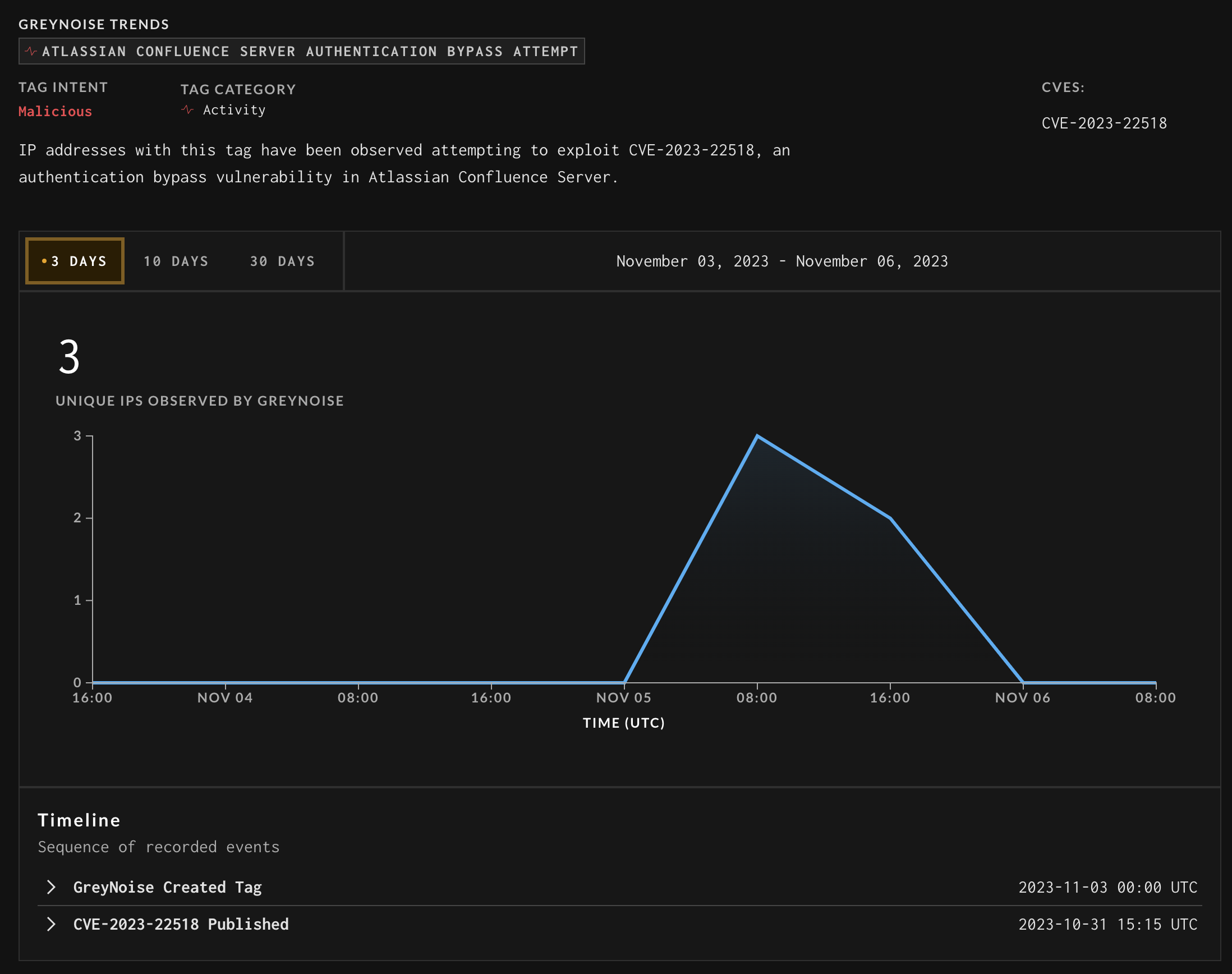
I’m including the bash script I made for myself to help you make best use of the utility mentioned in section one. It has some quality-of-life improvements:
Checks to make sure the CLI is installed and that ImageMagick is also installed (we add some flair to the capture)
Caches a copy of our GN mascot to add as a watermark
Ensures we’ve got a GN Visualizer URL on the clipboard
Pulls the URL from the clipboard
Takes a webshot of the speficited URL and a specific DOM subtree
Annotates the image with info from the URL and our mascot
Pastes the image to the clipboard
The script is below, but it’s best viewed on GitLab.
NOTE: non-macOS folks will need to customize this.
#!/bin/bash

set -e

captureWebsite="$(whereis -q capture-website)"
if [[ -z "${captureWebsite}" ]]; then
  echo "😭 The 'capture-website' utility was not found."
  echo "🙏🏽 Please install it via npm:"
  echo "  npm install --global capture-website-cli"
fi

MAGICK="$(whereis -q magick)"
if [[ -z "${MAGICK}" ]]; then
  echo "😭 Imagemagick was not found."
  echo "🙏🏽 Please install it via:"
  echo "  brew install Imagemagick"
fi

# Grab Ghostie for pic embed if not downloaded
GHOSTIE="${HOME}/Downloads/ghostie-embed.png"
if [ ! -f "${GHOSTIE}" ]; then
  echo "⌛️ Caching Ghostie 👻 for this and future embeds…"
  curl --silent "https://rud.is/dl/ghostie-embed.png" >"${GHOSTIE}"
fi

# Grab the clipboard
buf="$(pbpaste)"

# How long to wait for the render.
# If this is too long, GDPR becomes a problem.
DELAY=4

# This sometimes changes
TARGET_DIV="main div div div div.mt-6 div"

# Make sure it's a GN Viz URL
if [[ ${buf} =~ ^(http|https)://viz.greynoise.io ]]; then

  echo "⏳ Processing: ${buf}…"

  # Make a filename
  out="$(basename "${buf}" | sed -e 's/\?.*//')"
  outfile="$(mktemp /tmp/tempfile-XXXXX).png"

  # Capture the div
  ${captureWebsite} "${buf}" --element="${TARGET_DIV}" --inset=-15 --delay=${DELAY} --overwrite --output="${outfile}"

  echo "ℹ️ Temporary capture file is at ${outfile}."

  # Tack on the tag slug and Ghostie
  echo "🏷️ Adding Tag slug…"
  magick mogrify -font Inconsolata-Regular -fill white -gravity South -pointsize 30 -annotate +0+60 "${out}" "${outfile}"

  echo "👻 Adding Ghostie!"
  magick "${outfile}" "${GHOSTIE}" -gravity southeast -geometry +50+50 -composite "${outfile}"

  # Open in Preview
  open "${outfile}"

  # Copy original buffer to the clipboard
  echo "${buf} 👀" | pbcopy

  osascript -e "set the clipboard to (read (POSIX file \"${outfile}\") as {«class PNGf»})"

  echo "ℹ️ The image is on the clipboard ready to be pasted!"
  echo "🎗️ Remember to delete ${outfile}!"

  exit 0

else
  echo "❌ Clipboard is not GN Viz URL"
  exit 1
fi
gowitness

A similar, but also quite different, take on this genre is Gowitness, a command-line tool that also enables us to take screenshots of web interfaces. It, too, uses Chrome Headless to generate them, and can be orchestrated in many ways:
take a single screenshot with the
singlecommandscan a network CIDR (or many) with the
scancommandparse an Nmap file for target information with the
nmapcommandaccept URL’s submitted via a web service with the
servercommand (perfect for integration with other tools)take screenshots from a text file (or read via stdin) with the
filecommand
Some examples of the above include:
screenshot a single website
gowitness single https://rud.is/screenshot a CIDR using 20 threads
gowitness scan --cidr 192.168.0.0/24 --threads 20screenshot open HTTP services from an Nmap file
gowitness nmap -f nmap.xml --open --service-contains httprun the report server
gowitness report serve
By default, gowitness will store screenshots in a screenshots/ directory in the path where it is being run from. It will also store all of the initial HTTP responses — including headers & TLS information — in a sqlite3 database called gowitness.sqlite3, but you can use Postgres, too.
The tool has great docs and URLBox has a nice overview (though it’s one of those “here’s a utility you can use, but our freemium API is better” kind of articles).
FIN
Remember to get outside for some vitamin D today! The days are truly getting shorter. ☮️
 hrbrmstr's Daily Drop
Leave a comment